

 Authenticate
 Manage Users
 Customize
 Auth0 AI
 Platform
Check Auth0 logs
- Login to the Auth0 Dashboard
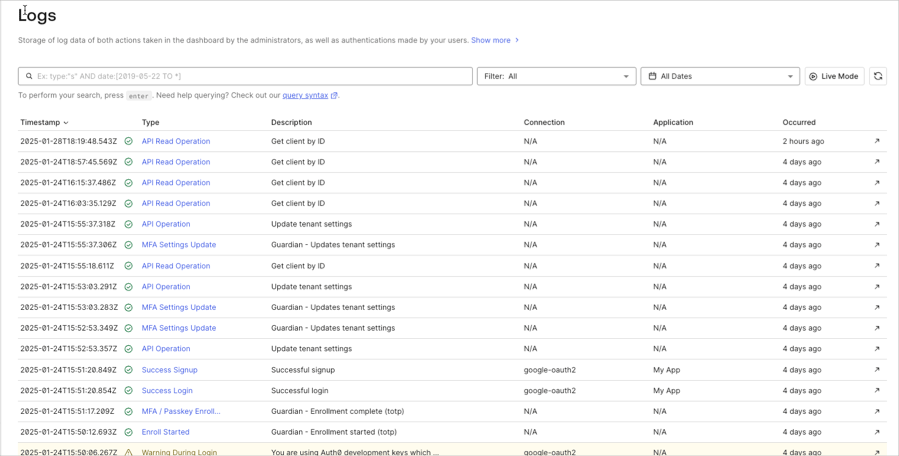
- The Logs page is located under Monitoring in the menu on the left.
- On the Logs page, you’ll see a search bar along with a filter selection and date picker.
Log structure
Each log event has the following fields:Example of failed login log event
Here is an example log event for a failed login due to an incorrect password:Indicators of an attack
Identifying an attack early on may be difficult, but here are some things to look for in your logs along with example search queries:-
High numbers of failed logins with invalid usernames or login attempts for non-existent users.
type:"fu"description:"missing username parameter"description:"Wrong email or password"
-
Large number of accounts reaching the failed login attempts limit.
type:"limit_wc"
-
A high number of login attempts using a leaked password.
type:"pwd_leak"
The Log Search Query Syntax page provides details on Auth0’s log query syntax and includes more example queries.
Identify compromised user accounts
To identify user accounts that may have been compromised you can search for:-
Successful login events from a suspicious IP address:
type:"s" AND ip:"99.xxx.xxx.xxx"
Check compromised user account activity
After identifying a compromised user account you’ll want to check the account’s activity:- Search for other log events with the same
user_id:user_id:"auth0|ABC123" - Check the
client_nameorclient_idlog event fields to see which applications were accessed. Make a note of when access occurred. - Check for administration access or Auth0 configuration changes
- Search for recent calls:
type:"sapi"
Delete or block users from the dashboard
- Go to Dashboard > User Management > Users.
- Search for the user to delete or block.
- Click the ”…” button on the far right of the user.
- Select Block or Delete and confirm.