> ## Documentation Index
> Fetch the complete documentation index at: https://docs-dev-privilege-worker-scope-pinning.mintlify.site/llms.txt
> Use this file to discover all available pages before exploring further.

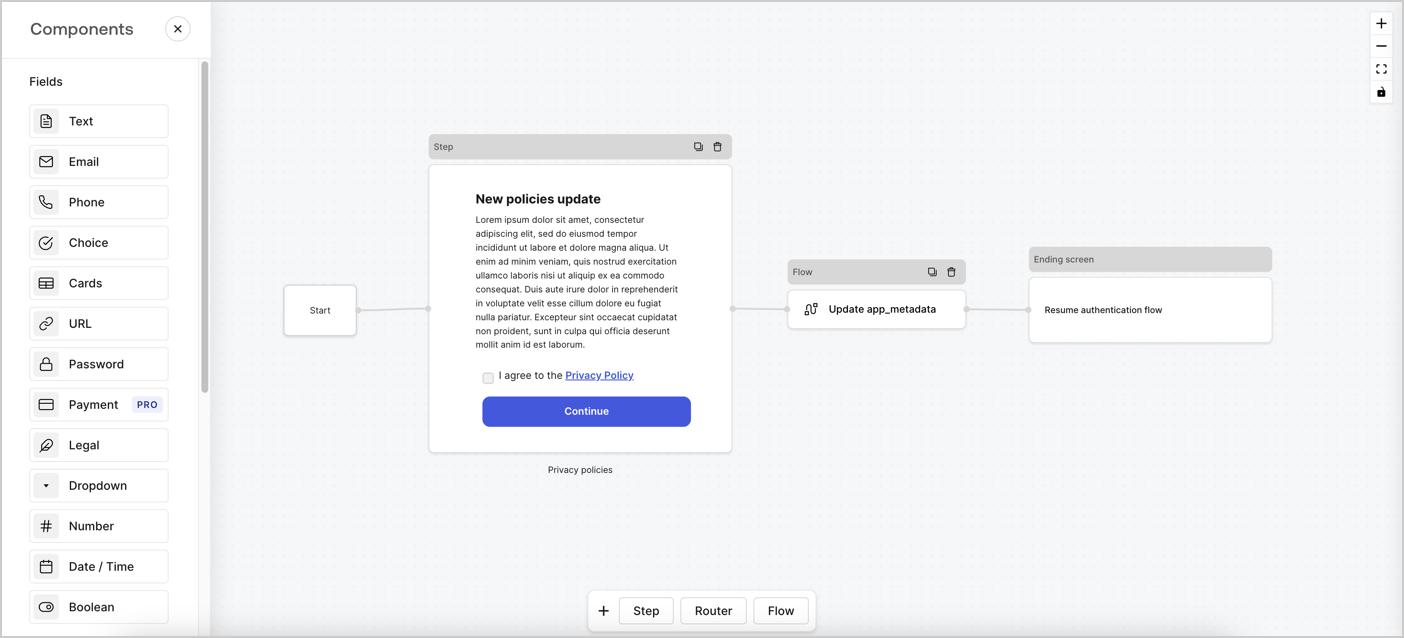
> Learn how to configure an update policy form using Forms for Actions for users to review and accept new terms of service or consent updates.

# Use Cases: Configure an update policy form using Forms

<Card title="Before you start">
  1. Create a [Machine-to-Machine Application](/docs/get-started/auth0-overview/create-applications/machine-to-machine-apps) with the following scopes enabled:

  * `read:users`
  * `update:users`
  * `create:users`
  * `read:users_app_metadata`
  * `update:users_app_metadata`
  * `create:users_app_metadata`

  2. Add a [Vault connection](/docs/customize/forms/vault) using the M2M application credentials.
</Card>

Forms for Actions allows you to create custom privacy policies flows and store the consent under the `app_metadata` object.
<Frame>
  <img src="https://mintcdn.com/docs-dev-privilege-worker-scope-pinning/YEqAmD2GRQOBB7ji/docs/images/cdy7uua7fh8z/6i68dMvHDTijfRmSgN1x8Q/ad900e7d4c0fb34645921435472b8684/privavy-policy-form.png?fit=max&auto=format&n=YEqAmD2GRQOBB7ji&q=85&s=33c75bccb0706301d20f46027e85077e" alt="Dashboard > Actions > Forms > Privacy policy use case" data-og-width="1404" width="1404" data-og-height="638" height="638" data-path="docs/images/cdy7uua7fh8z/6i68dMvHDTijfRmSgN1x8Q/ad900e7d4c0fb34645921435472b8684/privavy-policy-form.png" data-optimize="true" data-opv="3" srcset="https://mintcdn.com/docs-dev-privilege-worker-scope-pinning/YEqAmD2GRQOBB7ji/docs/images/cdy7uua7fh8z/6i68dMvHDTijfRmSgN1x8Q/ad900e7d4c0fb34645921435472b8684/privavy-policy-form.png?w=280&fit=max&auto=format&n=YEqAmD2GRQOBB7ji&q=85&s=97079e36c9da6ab0ebb7a16d3f4c72e7 280w, https://mintcdn.com/docs-dev-privilege-worker-scope-pinning/YEqAmD2GRQOBB7ji/docs/images/cdy7uua7fh8z/6i68dMvHDTijfRmSgN1x8Q/ad900e7d4c0fb34645921435472b8684/privavy-policy-form.png?w=560&fit=max&auto=format&n=YEqAmD2GRQOBB7ji&q=85&s=c81d929d0d9b6f90ed3eb5971d362e5c 560w, https://mintcdn.com/docs-dev-privilege-worker-scope-pinning/YEqAmD2GRQOBB7ji/docs/images/cdy7uua7fh8z/6i68dMvHDTijfRmSgN1x8Q/ad900e7d4c0fb34645921435472b8684/privavy-policy-form.png?w=840&fit=max&auto=format&n=YEqAmD2GRQOBB7ji&q=85&s=ddf1368b2576372b5d80e7659e1acea4 840w, https://mintcdn.com/docs-dev-privilege-worker-scope-pinning/YEqAmD2GRQOBB7ji/docs/images/cdy7uua7fh8z/6i68dMvHDTijfRmSgN1x8Q/ad900e7d4c0fb34645921435472b8684/privavy-policy-form.png?w=1100&fit=max&auto=format&n=YEqAmD2GRQOBB7ji&q=85&s=2d503ae87fbb082c774578b15b110a8e 1100w, https://mintcdn.com/docs-dev-privilege-worker-scope-pinning/YEqAmD2GRQOBB7ji/docs/images/cdy7uua7fh8z/6i68dMvHDTijfRmSgN1x8Q/ad900e7d4c0fb34645921435472b8684/privavy-policy-form.png?w=1650&fit=max&auto=format&n=YEqAmD2GRQOBB7ji&q=85&s=5e5b921ef087bf26603d560e2ba1a13d 1650w, https://mintcdn.com/docs-dev-privilege-worker-scope-pinning/YEqAmD2GRQOBB7ji/docs/images/cdy7uua7fh8z/6i68dMvHDTijfRmSgN1x8Q/ad900e7d4c0fb34645921435472b8684/privavy-policy-form.png?w=2500&fit=max&auto=format&n=YEqAmD2GRQOBB7ji&q=85&s=62aa74f165349e8a423eee9f71f56fd1 2500w" />
</Frame>

The sections below outline how you can create an Update Policy form using nodes and flows, along with steps for adding your form to a [Post Login](/docs/customize/actions/explore-triggers/signup-and-login-triggers/login-trigger) Action.

## Create a form from scratch

Follow these steps to create a form to gather information:

1. Open the Form editor by selecting **Auth0 Dashboard > Actions > Forms.**
2. Select **Create Form** > **Start from scratch**.

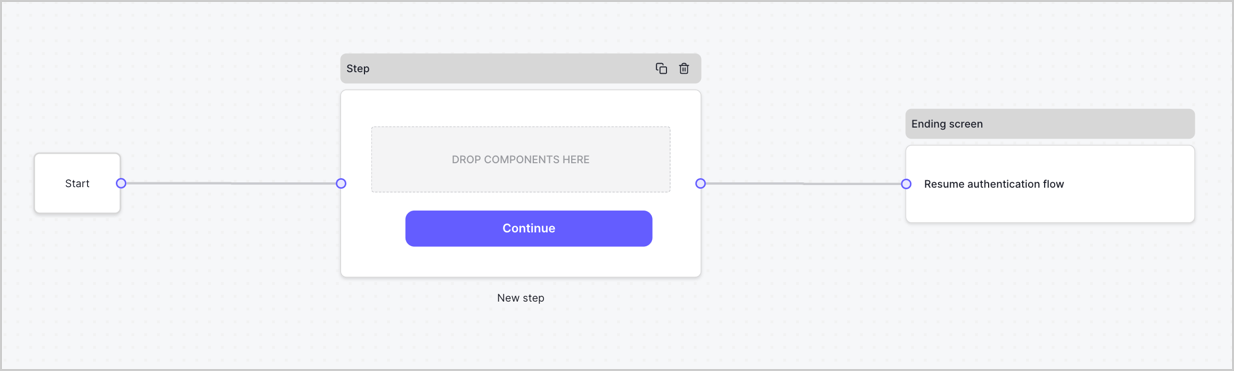
By default, a new form contains a Start node, a Step node, and an Ending screen node.
<Frame>
  <img src="https://mintcdn.com/docs-dev-privilege-worker-scope-pinning/4RptRaVXnzlDd5-f/docs/images/cdy7uua7fh8z/2TZ9jSjgEcARFpULI6hz4R/a4319a1bd482f2ee5cc23100fdb2f42c/New-form-Forms-for-action-use-case.png?fit=max&auto=format&n=4RptRaVXnzlDd5-f&q=85&s=5d20ddce18922de0b6b439cf30745056" alt="Dashboard > Forms > Use Cases > Form" data-og-width="1234" width="1234" data-og-height="371" height="371" data-path="docs/images/cdy7uua7fh8z/2TZ9jSjgEcARFpULI6hz4R/a4319a1bd482f2ee5cc23100fdb2f42c/New-form-Forms-for-action-use-case.png" data-optimize="true" data-opv="3" srcset="https://mintcdn.com/docs-dev-privilege-worker-scope-pinning/4RptRaVXnzlDd5-f/docs/images/cdy7uua7fh8z/2TZ9jSjgEcARFpULI6hz4R/a4319a1bd482f2ee5cc23100fdb2f42c/New-form-Forms-for-action-use-case.png?w=280&fit=max&auto=format&n=4RptRaVXnzlDd5-f&q=85&s=a81d9f42ca14b7d4d3bd8a02b0278a15 280w, https://mintcdn.com/docs-dev-privilege-worker-scope-pinning/4RptRaVXnzlDd5-f/docs/images/cdy7uua7fh8z/2TZ9jSjgEcARFpULI6hz4R/a4319a1bd482f2ee5cc23100fdb2f42c/New-form-Forms-for-action-use-case.png?w=560&fit=max&auto=format&n=4RptRaVXnzlDd5-f&q=85&s=93e302a351bcb90ed7496b9264dbf7b3 560w, https://mintcdn.com/docs-dev-privilege-worker-scope-pinning/4RptRaVXnzlDd5-f/docs/images/cdy7uua7fh8z/2TZ9jSjgEcARFpULI6hz4R/a4319a1bd482f2ee5cc23100fdb2f42c/New-form-Forms-for-action-use-case.png?w=840&fit=max&auto=format&n=4RptRaVXnzlDd5-f&q=85&s=553573a94fe64a2ba10635186381d6b0 840w, https://mintcdn.com/docs-dev-privilege-worker-scope-pinning/4RptRaVXnzlDd5-f/docs/images/cdy7uua7fh8z/2TZ9jSjgEcARFpULI6hz4R/a4319a1bd482f2ee5cc23100fdb2f42c/New-form-Forms-for-action-use-case.png?w=1100&fit=max&auto=format&n=4RptRaVXnzlDd5-f&q=85&s=f9d8109ce23e18af03930146fd35e42f 1100w, https://mintcdn.com/docs-dev-privilege-worker-scope-pinning/4RptRaVXnzlDd5-f/docs/images/cdy7uua7fh8z/2TZ9jSjgEcARFpULI6hz4R/a4319a1bd482f2ee5cc23100fdb2f42c/New-form-Forms-for-action-use-case.png?w=1650&fit=max&auto=format&n=4RptRaVXnzlDd5-f&q=85&s=85c44bd367051887f9687e4379295ff0 1650w, https://mintcdn.com/docs-dev-privilege-worker-scope-pinning/4RptRaVXnzlDd5-f/docs/images/cdy7uua7fh8z/2TZ9jSjgEcARFpULI6hz4R/a4319a1bd482f2ee5cc23100fdb2f42c/New-form-Forms-for-action-use-case.png?w=2500&fit=max&auto=format&n=4RptRaVXnzlDd5-f&q=85&s=7bd633ddf146a122c55370e1a0ad1174 2500w" />
</Frame>

### Configure the Step node

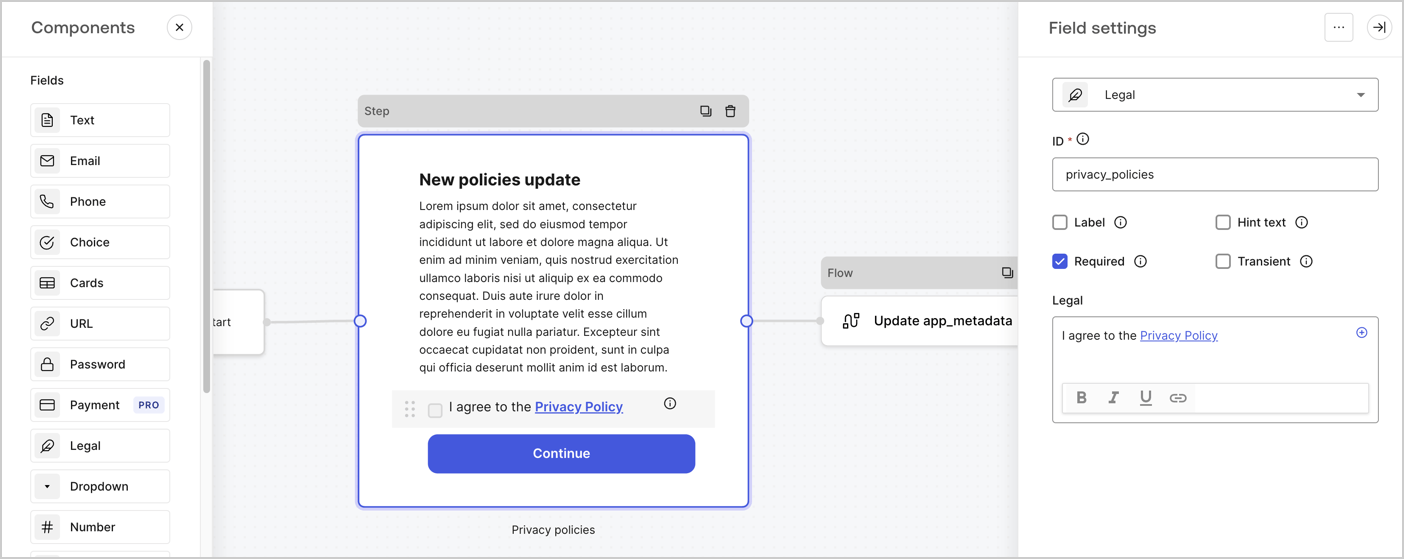
The Step node is the graphical interface visible to users. Add [Fields](/docs/customize/forms/nodes-and-components) to the Step node to collect the new agreement acceptance value by following these steps:

1. Drag a **Rich text** field from the **Components menu** into the **Step** node.

   * **Rich text**: Enter a description of your privacy policies updates.
   * Select **Save**.
2. Drag a **Legal** field into the **Step** node.

   * **ID**: Enter `privacy_policies`.
   * **Required**: Enable the checkbox.
   * **Legal**: Enter `I agree to the Privacy Policy`.
   * Select **Save**.
3. Select **Publish** to save.
<Frame>
  <img src="https://mintcdn.com/docs-dev-privilege-worker-scope-pinning/mOvixXqMLAbh7ZJe/docs/images/cdy7uua7fh8z/59zFFjQjAnjogkc2QGIqqJ/0ad66b1b636544122aa4e65968b76c2c/privacy-policy-step-node.png?fit=max&auto=format&n=mOvixXqMLAbh7ZJe&q=85&s=d1750d9f11126410b057c5d764dfd934" alt="Dashboard > Actions > Forms > Use case privacy policy step node" data-og-width="1404" width="1404" data-og-height="559" height="559" data-path="docs/images/cdy7uua7fh8z/59zFFjQjAnjogkc2QGIqqJ/0ad66b1b636544122aa4e65968b76c2c/privacy-policy-step-node.png" data-optimize="true" data-opv="3" srcset="https://mintcdn.com/docs-dev-privilege-worker-scope-pinning/mOvixXqMLAbh7ZJe/docs/images/cdy7uua7fh8z/59zFFjQjAnjogkc2QGIqqJ/0ad66b1b636544122aa4e65968b76c2c/privacy-policy-step-node.png?w=280&fit=max&auto=format&n=mOvixXqMLAbh7ZJe&q=85&s=672ccee99ccf901d7af24c7a7c43883a 280w, https://mintcdn.com/docs-dev-privilege-worker-scope-pinning/mOvixXqMLAbh7ZJe/docs/images/cdy7uua7fh8z/59zFFjQjAnjogkc2QGIqqJ/0ad66b1b636544122aa4e65968b76c2c/privacy-policy-step-node.png?w=560&fit=max&auto=format&n=mOvixXqMLAbh7ZJe&q=85&s=abf449a846804e938fa853e1616e3f86 560w, https://mintcdn.com/docs-dev-privilege-worker-scope-pinning/mOvixXqMLAbh7ZJe/docs/images/cdy7uua7fh8z/59zFFjQjAnjogkc2QGIqqJ/0ad66b1b636544122aa4e65968b76c2c/privacy-policy-step-node.png?w=840&fit=max&auto=format&n=mOvixXqMLAbh7ZJe&q=85&s=4662403151a34a0355213f46384182d3 840w, https://mintcdn.com/docs-dev-privilege-worker-scope-pinning/mOvixXqMLAbh7ZJe/docs/images/cdy7uua7fh8z/59zFFjQjAnjogkc2QGIqqJ/0ad66b1b636544122aa4e65968b76c2c/privacy-policy-step-node.png?w=1100&fit=max&auto=format&n=mOvixXqMLAbh7ZJe&q=85&s=a9df7f8845c26c7182d8f3f18b2d9fdf 1100w, https://mintcdn.com/docs-dev-privilege-worker-scope-pinning/mOvixXqMLAbh7ZJe/docs/images/cdy7uua7fh8z/59zFFjQjAnjogkc2QGIqqJ/0ad66b1b636544122aa4e65968b76c2c/privacy-policy-step-node.png?w=1650&fit=max&auto=format&n=mOvixXqMLAbh7ZJe&q=85&s=b7fda2159226cbb2cb97b524cb4ec000 1650w, https://mintcdn.com/docs-dev-privilege-worker-scope-pinning/mOvixXqMLAbh7ZJe/docs/images/cdy7uua7fh8z/59zFFjQjAnjogkc2QGIqqJ/0ad66b1b636544122aa4e65968b76c2c/privacy-policy-step-node.png?w=2500&fit=max&auto=format&n=mOvixXqMLAbh7ZJe&q=85&s=04b24658d1464a41dda2b11ea953bc28 2500w" />
</Frame>

### Configure the Flow node

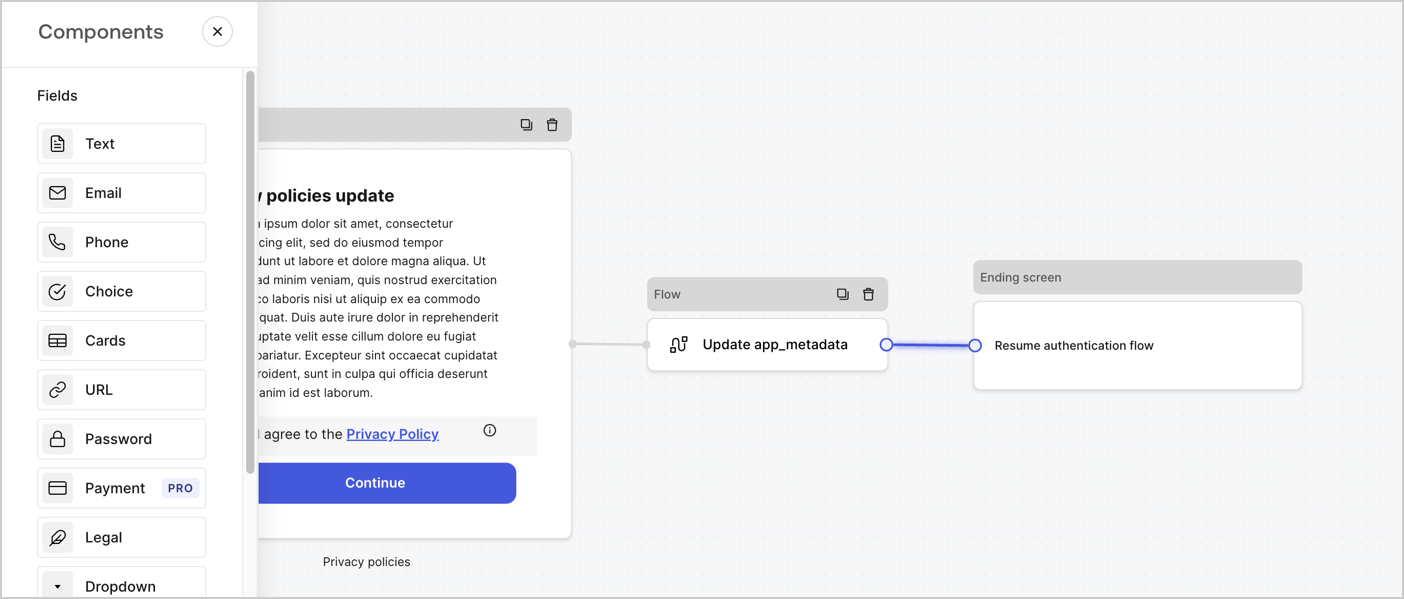
Add a **Flow** node after the **Step** node to update the `app_metadata` and resume the authentication flow by following these steps:

1. Select **Flow** from the bottom of the Form editor.
2. Remove the existing link between the **Step** and **Ending Screen** nodes.
3. Select the new **Flow** > **Click to add a flow** > **Create a new flow.**

   * Enter `Update app_metadata` in the **Name** field.
   * Select **Create**.
   * Select **Save**.
4. Link the **Flow** node to the **Step** and **Ending Screen** nodes as pictured below.
5. Select **Publish** to save.
<Frame>
  <img src="https://mintcdn.com/docs-dev-privilege-worker-scope-pinning/YEqAmD2GRQOBB7ji/docs/images/cdy7uua7fh8z/6YIkzm7SrpM9LW76AXuRzh/353c518fe82bbaa440836da1d83596d6/link-policies.png?fit=max&auto=format&n=YEqAmD2GRQOBB7ji&q=85&s=d2fb6c5265305be3dada28406cc9e5bd" alt="Dashboard > Actions > Forms > Form" data-og-width="1404" width="1404" data-og-height="599" height="599" data-path="docs/images/cdy7uua7fh8z/6YIkzm7SrpM9LW76AXuRzh/353c518fe82bbaa440836da1d83596d6/link-policies.png" data-optimize="true" data-opv="3" srcset="https://mintcdn.com/docs-dev-privilege-worker-scope-pinning/YEqAmD2GRQOBB7ji/docs/images/cdy7uua7fh8z/6YIkzm7SrpM9LW76AXuRzh/353c518fe82bbaa440836da1d83596d6/link-policies.png?w=280&fit=max&auto=format&n=YEqAmD2GRQOBB7ji&q=85&s=e7691e18482f8e83fcfce45621ecc1b7 280w, https://mintcdn.com/docs-dev-privilege-worker-scope-pinning/YEqAmD2GRQOBB7ji/docs/images/cdy7uua7fh8z/6YIkzm7SrpM9LW76AXuRzh/353c518fe82bbaa440836da1d83596d6/link-policies.png?w=560&fit=max&auto=format&n=YEqAmD2GRQOBB7ji&q=85&s=96b4bab0469a41b4184cae9b39a87c20 560w, https://mintcdn.com/docs-dev-privilege-worker-scope-pinning/YEqAmD2GRQOBB7ji/docs/images/cdy7uua7fh8z/6YIkzm7SrpM9LW76AXuRzh/353c518fe82bbaa440836da1d83596d6/link-policies.png?w=840&fit=max&auto=format&n=YEqAmD2GRQOBB7ji&q=85&s=d32457f2384fdda0ab4243608bb5fed6 840w, https://mintcdn.com/docs-dev-privilege-worker-scope-pinning/YEqAmD2GRQOBB7ji/docs/images/cdy7uua7fh8z/6YIkzm7SrpM9LW76AXuRzh/353c518fe82bbaa440836da1d83596d6/link-policies.png?w=1100&fit=max&auto=format&n=YEqAmD2GRQOBB7ji&q=85&s=fb1ad5e88d36ef0944ad98963c69a536 1100w, https://mintcdn.com/docs-dev-privilege-worker-scope-pinning/YEqAmD2GRQOBB7ji/docs/images/cdy7uua7fh8z/6YIkzm7SrpM9LW76AXuRzh/353c518fe82bbaa440836da1d83596d6/link-policies.png?w=1650&fit=max&auto=format&n=YEqAmD2GRQOBB7ji&q=85&s=fab19f8affbd18d83c3452ca6b307acb 1650w, https://mintcdn.com/docs-dev-privilege-worker-scope-pinning/YEqAmD2GRQOBB7ji/docs/images/cdy7uua7fh8z/6YIkzm7SrpM9LW76AXuRzh/353c518fe82bbaa440836da1d83596d6/link-policies.png?w=2500&fit=max&auto=format&n=YEqAmD2GRQOBB7ji&q=85&s=8dd684213917e6b8bf7e25f73c77b2cb 2500w" />
</Frame>

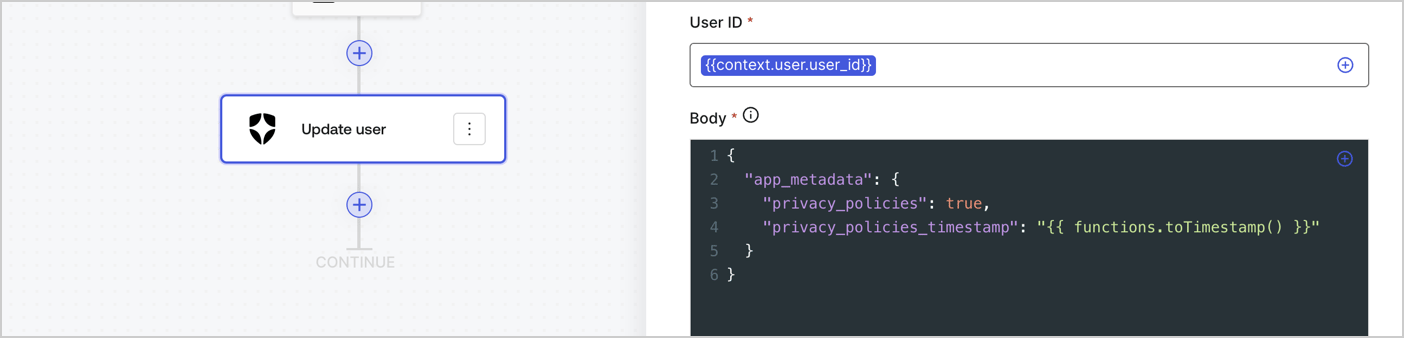
Add an Auth0 Update user action to the flow by following these steps:

1. Select the **Flow** **Update app\_metadata** > **Edit flow** to open the Flow editor in a new tab.
2. Below the StartAction, select the **+** icon to add an **Update user** action. Complete the fields below, then select **Save** to continue.

   * **Connection**: Select from the dropdown the Vault connection to your M2M application.

   * **User ID**: Enter `{{context.user.user_id}}`.

   * **Body**: Copy and paste the following code to update the app\_metadata with the privacy\_policies and privacy\_policies\_timestamp properties.

     ```text lines theme={null}
     {
       "app_metadata": {
         "privacy_policies": true,
         "privacy_policies_timestamp": "{{ functions.toTimestamp() }}"
       }
     }
     ```

   * Select **Save**.
3. Select **Publish** to save.
<Frame>
  <img src="https://mintcdn.com/docs-dev-privilege-worker-scope-pinning/XNGguAHhyNUHteBX/docs/images/cdy7uua7fh8z/CvMNIwWrOUwaFW4X3G28p/1fb70ae57a20749d9ffaaba8dc0b7e26/update-user-privacy.png?fit=max&auto=format&n=XNGguAHhyNUHteBX&q=85&s=52b1e5413403d3088152a1cff1ed3c9d" alt="Dashboard > Actions > Forms > User case privacy policy code" data-og-width="1404" width="1404" data-og-height="338" height="338" data-path="docs/images/cdy7uua7fh8z/CvMNIwWrOUwaFW4X3G28p/1fb70ae57a20749d9ffaaba8dc0b7e26/update-user-privacy.png" data-optimize="true" data-opv="3" srcset="https://mintcdn.com/docs-dev-privilege-worker-scope-pinning/XNGguAHhyNUHteBX/docs/images/cdy7uua7fh8z/CvMNIwWrOUwaFW4X3G28p/1fb70ae57a20749d9ffaaba8dc0b7e26/update-user-privacy.png?w=280&fit=max&auto=format&n=XNGguAHhyNUHteBX&q=85&s=830540c98dae79c857ac2c6719cdacd9 280w, https://mintcdn.com/docs-dev-privilege-worker-scope-pinning/XNGguAHhyNUHteBX/docs/images/cdy7uua7fh8z/CvMNIwWrOUwaFW4X3G28p/1fb70ae57a20749d9ffaaba8dc0b7e26/update-user-privacy.png?w=560&fit=max&auto=format&n=XNGguAHhyNUHteBX&q=85&s=dc297908cf96c2235f63a81e7bf671d0 560w, https://mintcdn.com/docs-dev-privilege-worker-scope-pinning/XNGguAHhyNUHteBX/docs/images/cdy7uua7fh8z/CvMNIwWrOUwaFW4X3G28p/1fb70ae57a20749d9ffaaba8dc0b7e26/update-user-privacy.png?w=840&fit=max&auto=format&n=XNGguAHhyNUHteBX&q=85&s=f20fc7865cd0a538256de3e085e86dc8 840w, https://mintcdn.com/docs-dev-privilege-worker-scope-pinning/XNGguAHhyNUHteBX/docs/images/cdy7uua7fh8z/CvMNIwWrOUwaFW4X3G28p/1fb70ae57a20749d9ffaaba8dc0b7e26/update-user-privacy.png?w=1100&fit=max&auto=format&n=XNGguAHhyNUHteBX&q=85&s=6ec0ae2b08e2e503ab93145975b4210e 1100w, https://mintcdn.com/docs-dev-privilege-worker-scope-pinning/XNGguAHhyNUHteBX/docs/images/cdy7uua7fh8z/CvMNIwWrOUwaFW4X3G28p/1fb70ae57a20749d9ffaaba8dc0b7e26/update-user-privacy.png?w=1650&fit=max&auto=format&n=XNGguAHhyNUHteBX&q=85&s=b7cb92b1ee9a722f4794f8aee59688c9 1650w, https://mintcdn.com/docs-dev-privilege-worker-scope-pinning/XNGguAHhyNUHteBX/docs/images/cdy7uua7fh8z/CvMNIwWrOUwaFW4X3G28p/1fb70ae57a20749d9ffaaba8dc0b7e26/update-user-privacy.png?w=2500&fit=max&auto=format&n=XNGguAHhyNUHteBX&q=85&s=5bb2298691b92f00dd71b4cb770019fc 2500w" />
</Frame>

<Callout icon="file-lines" color="#0EA5E9" iconType="regular">
  The flow **Update app\_metadata** adds a `privacy_policies true` value to the app`_metadata` object and also generates a timestamp with a [helper function.](/docs/customize/forms/variables)
</Callout>

## Retrieve the form render code

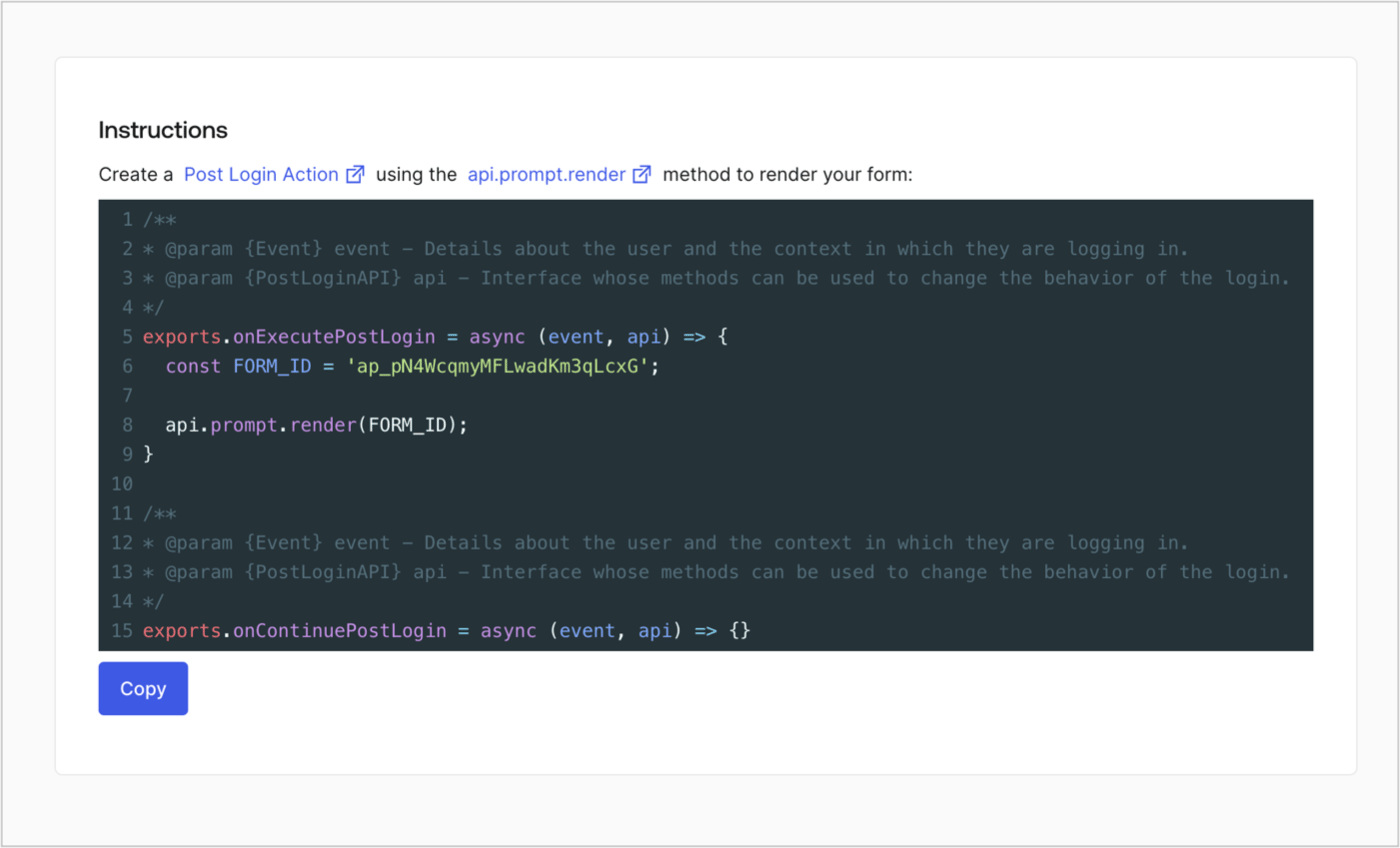
Retrieve your form render code to visually render the form with a custom Post Login Action by following these steps:

* From the Form editor, select **`<> Render`**.
* Select **Copy**.
<Frame>
  <img src="https://mintcdn.com/docs-dev-privilege-worker-scope-pinning/qYgaRCBOV0mMi9aI/docs/images/cdy7uua7fh8z/2EIUzc539sq9lwoTKbjoJv/496a864c0fc44a782c9cadca119dbfb0/embed.png?fit=max&auto=format&n=qYgaRCBOV0mMi9aI&q=85&s=90b8995411fddb0f50e004a2732e76cf" alt="Dashboard > Actions > Forms > Form > Embed" data-og-width="1400" width="1400" data-og-height="848" height="848" data-path="docs/images/cdy7uua7fh8z/2EIUzc539sq9lwoTKbjoJv/496a864c0fc44a782c9cadca119dbfb0/embed.png" data-optimize="true" data-opv="3" srcset="https://mintcdn.com/docs-dev-privilege-worker-scope-pinning/qYgaRCBOV0mMi9aI/docs/images/cdy7uua7fh8z/2EIUzc539sq9lwoTKbjoJv/496a864c0fc44a782c9cadca119dbfb0/embed.png?w=280&fit=max&auto=format&n=qYgaRCBOV0mMi9aI&q=85&s=a48a45f52ea8cf225af832353e9b6640 280w, https://mintcdn.com/docs-dev-privilege-worker-scope-pinning/qYgaRCBOV0mMi9aI/docs/images/cdy7uua7fh8z/2EIUzc539sq9lwoTKbjoJv/496a864c0fc44a782c9cadca119dbfb0/embed.png?w=560&fit=max&auto=format&n=qYgaRCBOV0mMi9aI&q=85&s=bd3e39e995d97b03a68eeb53e8353835 560w, https://mintcdn.com/docs-dev-privilege-worker-scope-pinning/qYgaRCBOV0mMi9aI/docs/images/cdy7uua7fh8z/2EIUzc539sq9lwoTKbjoJv/496a864c0fc44a782c9cadca119dbfb0/embed.png?w=840&fit=max&auto=format&n=qYgaRCBOV0mMi9aI&q=85&s=70af60ee98e187eec12a3f8f5d39351f 840w, https://mintcdn.com/docs-dev-privilege-worker-scope-pinning/qYgaRCBOV0mMi9aI/docs/images/cdy7uua7fh8z/2EIUzc539sq9lwoTKbjoJv/496a864c0fc44a782c9cadca119dbfb0/embed.png?w=1100&fit=max&auto=format&n=qYgaRCBOV0mMi9aI&q=85&s=d92325c0786f3ccf7556357c7f50b4a7 1100w, https://mintcdn.com/docs-dev-privilege-worker-scope-pinning/qYgaRCBOV0mMi9aI/docs/images/cdy7uua7fh8z/2EIUzc539sq9lwoTKbjoJv/496a864c0fc44a782c9cadca119dbfb0/embed.png?w=1650&fit=max&auto=format&n=qYgaRCBOV0mMi9aI&q=85&s=ae627c702682e1b1d609fb57919604a5 1650w, https://mintcdn.com/docs-dev-privilege-worker-scope-pinning/qYgaRCBOV0mMi9aI/docs/images/cdy7uua7fh8z/2EIUzc539sq9lwoTKbjoJv/496a864c0fc44a782c9cadca119dbfb0/embed.png?w=2500&fit=max&auto=format&n=qYgaRCBOV0mMi9aI&q=85&s=b01912c9cdd5116f0023e6a3b32b758d 2500w" />
</Frame>

## Create a Post Login Action

Create a post-login Action to render your form by following these steps:

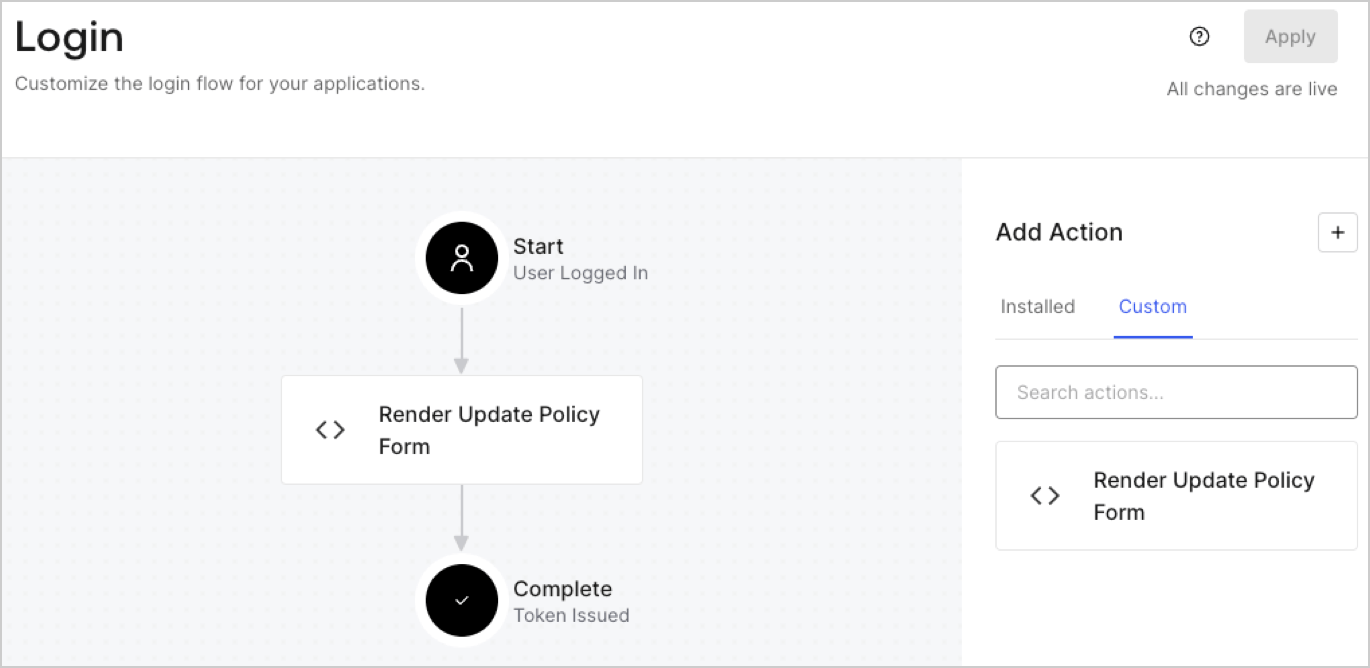
1. Navigate to **Auth0 Dashboard > Actions > Flows > Login.**
2. Select the **+** icon and Select **Build from scratch**:

   * **Name**: Enter `Render Update Policy Form`.
   * **Trigger**: Select `Login / Post Login`.
   * **Runtime**: Select the recommended version.
3. Select **Create**.

To configure the post-login Action:

1. Delete the existing code from the Code editor.
2. Paste the form render code into the Code editor.
3. Edit the code to define the conditional logic that will render the form.

   ```javascript lines theme={null}
   /**
   * @param {Event} event - Details about the user and the context in which they are logging in.
   * @param {PostLoginAPI} api - Interface whose methods can be used to change the behavior of the login.
   */
   exports.onExecutePostLogin = async (event, api) => {
     const FORM_ID = 'REPLACE_WITH_YOUR_FORM_ID';

     if (event.user.app_metadata.privacy_policies !== true) {
       api.prompt.render(FORM_ID);
     }
   }

   exports.onContinuePostLogin = async (event, api) => { }
   ```

   <Callout icon="file-lines" color="#0EA5E9" iconType="regular">
     The example code above will render the form when a user is missing the app metadata `privacy_policies` property.
   </Callout>
4. Select **Deploy.**
5. Drag and Drop the **Render Update Policy Form** Action to the **Login** flow.
   <Frame>
     <img src="https://mintcdn.com/docs-dev-privilege-worker-scope-pinning/qDZW1rlA9NxkJxo2/docs/images/cdy7uua7fh8z/5TOwDgevZsBqd7yZynUYWU/41ca909dc3007aed4f40ff794a05efa5/postlogin.png?fit=max&auto=format&n=qDZW1rlA9NxkJxo2&q=85&s=0e5829ee0ca3ef2b543be41ea59e3be6" alt="Dashboard > Forms > Use Case > Render update policy form login action" data-og-width="1370" width="1370" data-og-height="668" height="668" data-path="docs/images/cdy7uua7fh8z/5TOwDgevZsBqd7yZynUYWU/41ca909dc3007aed4f40ff794a05efa5/postlogin.png" data-optimize="true" data-opv="3" srcset="https://mintcdn.com/docs-dev-privilege-worker-scope-pinning/qDZW1rlA9NxkJxo2/docs/images/cdy7uua7fh8z/5TOwDgevZsBqd7yZynUYWU/41ca909dc3007aed4f40ff794a05efa5/postlogin.png?w=280&fit=max&auto=format&n=qDZW1rlA9NxkJxo2&q=85&s=34a03577748c00ada7e25c55f76c9664 280w, https://mintcdn.com/docs-dev-privilege-worker-scope-pinning/qDZW1rlA9NxkJxo2/docs/images/cdy7uua7fh8z/5TOwDgevZsBqd7yZynUYWU/41ca909dc3007aed4f40ff794a05efa5/postlogin.png?w=560&fit=max&auto=format&n=qDZW1rlA9NxkJxo2&q=85&s=77e3c8c39630029cfb3690da3e60b15a 560w, https://mintcdn.com/docs-dev-privilege-worker-scope-pinning/qDZW1rlA9NxkJxo2/docs/images/cdy7uua7fh8z/5TOwDgevZsBqd7yZynUYWU/41ca909dc3007aed4f40ff794a05efa5/postlogin.png?w=840&fit=max&auto=format&n=qDZW1rlA9NxkJxo2&q=85&s=75bac080759248d2593bd96d93c68c16 840w, https://mintcdn.com/docs-dev-privilege-worker-scope-pinning/qDZW1rlA9NxkJxo2/docs/images/cdy7uua7fh8z/5TOwDgevZsBqd7yZynUYWU/41ca909dc3007aed4f40ff794a05efa5/postlogin.png?w=1100&fit=max&auto=format&n=qDZW1rlA9NxkJxo2&q=85&s=13674b45c50ccd250bd02e31aa9bbb43 1100w, https://mintcdn.com/docs-dev-privilege-worker-scope-pinning/qDZW1rlA9NxkJxo2/docs/images/cdy7uua7fh8z/5TOwDgevZsBqd7yZynUYWU/41ca909dc3007aed4f40ff794a05efa5/postlogin.png?w=1650&fit=max&auto=format&n=qDZW1rlA9NxkJxo2&q=85&s=2558e44f3ab00622fa6866e4d8dc40c8 1650w, https://mintcdn.com/docs-dev-privilege-worker-scope-pinning/qDZW1rlA9NxkJxo2/docs/images/cdy7uua7fh8z/5TOwDgevZsBqd7yZynUYWU/41ca909dc3007aed4f40ff794a05efa5/postlogin.png?w=2500&fit=max&auto=format&n=qDZW1rlA9NxkJxo2&q=85&s=7de5f0cf13b90718721f32284d9f5895 2500w" />
   </Frame>
6. Select **Apply.**

### Test implementation

Test the implementation by following these steps:

1. Log in with an existing user whose app`_metadata` attribute `privacy_policies` does not have a value.
2. The post-login Action in the Login flow will render the form and prompt for acceptance.
3. Select **Auth0 Dashboard > User Management > Users,** locate the user and verify that the `app_metadata` attribute `privacy_policies` contains a `true` value and a timestamp.
